


 Home >
 Knowledge Base >
 FAQs >
 Downloads >
Windows 10 - Win10 Screen Resolution Partial Descriptions Shown
Below is a sample of a new project that has been opened in KAS/Win10. Some descriptions are cut off.
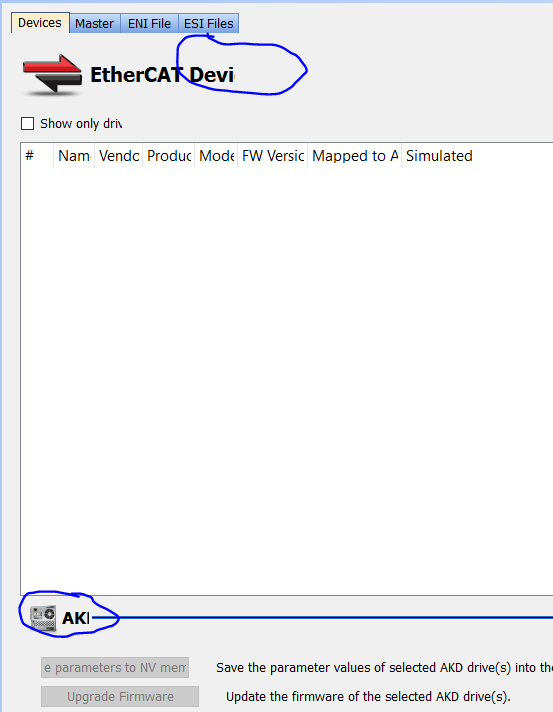
One solution:
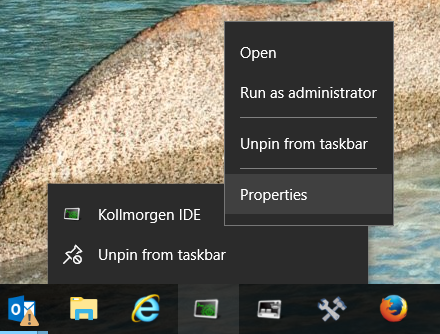
- “Pin” the Kollmorgen IDE to the start menu
- Used a right mouse click over the IDE icon, then left mouse click on Properties as shown below
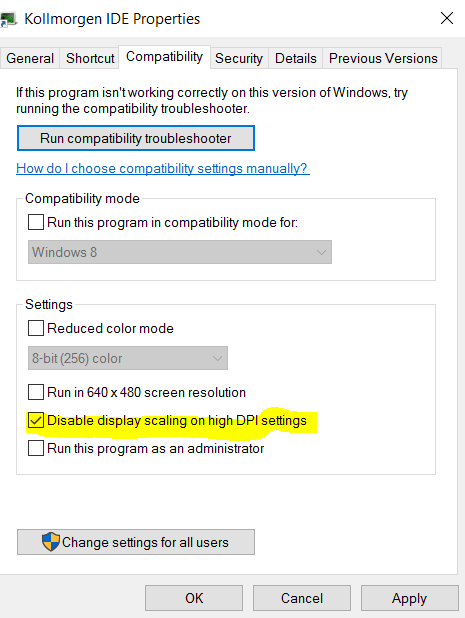
- Go to the compatibility tab
- Click “Disable display scaling on high DPI settings” as shown below in yellow.
- Click “Apply”
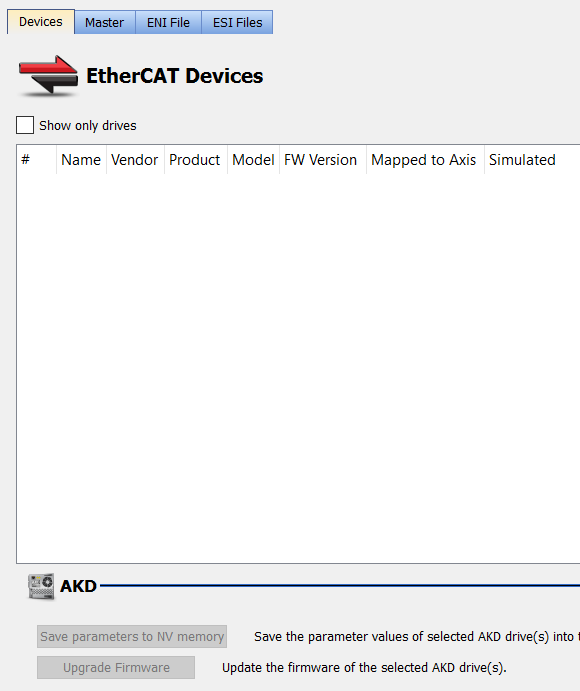
- Restart the IDE with new settings
- Below is now scaled to see all descriptions.
Comments
For example, in Win7, the text size is configured in the Control Panel\All Control Panel Items\Display:
If the text size scaling is set to 100%, than the IDE views will display all the text in it's views properly.