 Home >
 Knowledge Base >
 FAQs >
 Downloads >
Sytem Tags in KVB (AKI panels)
AKI/KVB System Tags
System tags are used to monitor or access variables from the system. System tags are handled as regular controller tags, i.e. can be used in screens, logged, included in scripts etc. The Date and Time system tags can be used when you want to use the controller clock in the panel project. The following system tags are available:
|
System tag group |
System tag |
Description |
|---|---|---|
|
Communication |
Communication Error Message |
Latest communication error message |
|
Communication Errors |
Number of active communication errors on all controllers |
|
|
Remote Alarm Server Connection Errors |
Number of remote alarm servers with connection errors, e.g. disconnected servers. |
|
|
Date and Time |
DateTime |
Current date and time |
|
Day |
Day component of current date |
|
|
Day of Week |
Day of current week (1-7 where 1 is Sunday) |
|
|
Hour |
Hour component of current time |
|
|
Minute |
Minute component of current time |
|
|
Month |
Month component of current date |
|
|
Second |
Second component of current time |
|
|
Year |
Year component of current date |
|
|
Project |
Current Screen Id |
The ID of the current screen. The data type of this tag is int16 and it only has read access. This tag gets updated every time you open a screen, with the exception on pop up screens. When opening a pop up screen the current screen id tag will not be updated. When entering a screen without a screen id the tag value of the current screen id will be set to -1. Note that 0 is a valid screen id. |
|
Current Screen Name |
Name of the current screen |
|
|
Latest Loaded Recipe |
Name of the latest loaded recipe |
|
|
New Screen Id |
The ID of the new screen. The data type of this tag is int16 and it has read/write access. The tag is always active. When the new screen id tag changes value a screen jump is made to the screen with corresponding screen id. If no such screen exists a notification message will show. If the new screen contains configured screen instances (alias), the default instance is always displayed. |
|
|
System |
Project Name |
Name of the current project |
|
Runtime Version |
Runtime version of framework |
|
|
Screen Update Time |
Screen update time (in ms) |
|
|
Available RAM |
Amount of available RAM memory (in kB) |
|
|
Available Storage |
Amount of available storage memory (in MB) |
|
|
Backlight Brightness Level |
Backlight brightness level (in percent) |
|
|
CPU Load |
Amount of used CPU capacity (in percent) |
|
|
Current User |
The user name of the currently logged in user |
|
|
Debug Logging Enabled |
Indicates if debug logging is enabled. |
|
|
Internal Temperature |
Internal panel temperature (in °C) |
|
|
Physical RAM |
RAM memory installed (in kB) |
|
|
Power LED Blink Frequency |
Blink frequency of the power LED (1–10 Hz,0 = always on) |
|
|
Power LED Blue Intensity |
Intensity of the blue power LED (0–100) |
|
|
Power LED Red Intensity |
Intensity of the red power LED (0–100) |
|
|
Storage Memory |
Storage memory installed in computer (in MB) |
|
|
Used RAM |
Amount of used RAM memory (in kB) |
|
|
Used RAM Percent |
Amount of used RAM memory (in percent of physical) |
|
|
Used Storage |
Amount of used storage memory (in MB) |
|
|
Used Storage Percent |
Amount of used storage memory (in percent of all storage) |
|
|
Windows CE Image Version |
Windows CE Image Version |
System tags are indicated by blue color in the tag list.
System tags are added by clicking the Add Tag/Add System Tag button in the tags configuration page.
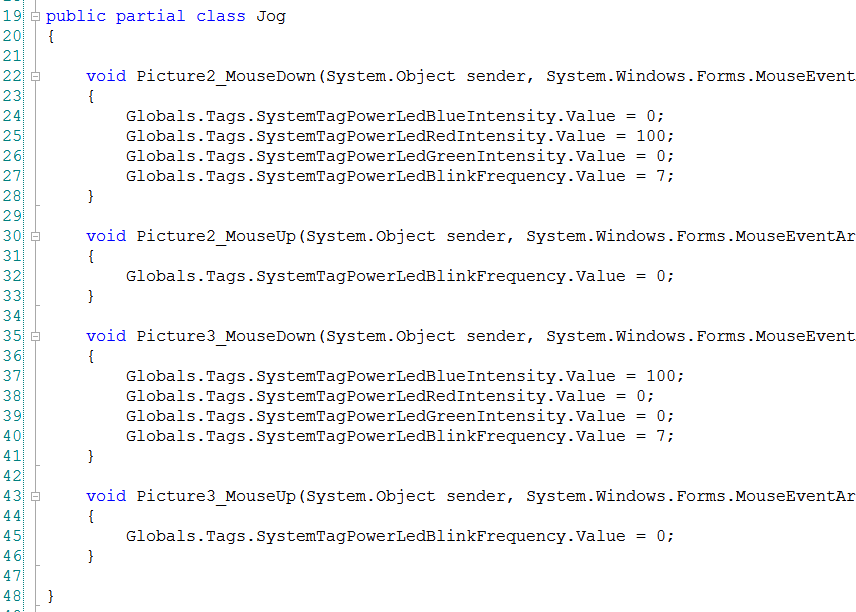
Example: