


 Home >
 Knowledge Base >
 FAQs >
 Downloads >
KAS Simulator won't run because port 80 is used
KAS Simulator requires the use of port 80 but sometimes other applications are using it. The application will need to be stopped before Simulator can be used. There are several ways to determine what is using the port.
Windows Vista, Windows 7, Windows Server 2008, or later
If you have Administrator access on your machine, the easiest way is to use a system tool called Resource Monitor.
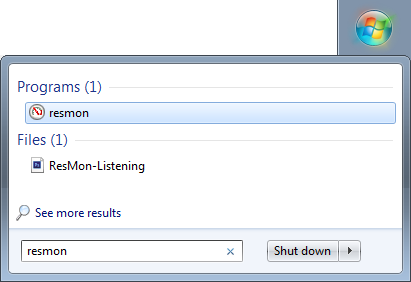
- From the Start menu type "resmon" and press Enter.
- Click on the Network tab and review the Listening Ports pane to identify the process using port 80. Make note of the PID (Process ID).

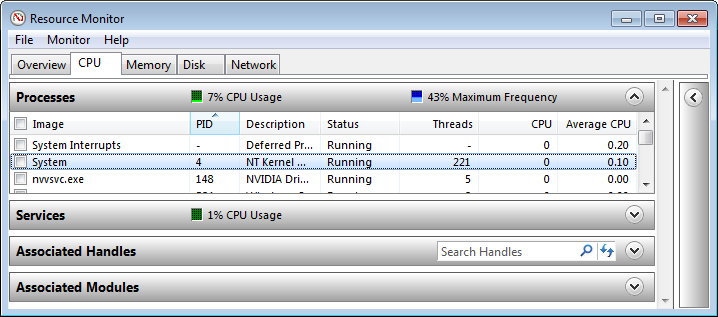
- Click on the CPU tab, sort the list by the PID.
- Scroll to the PID that is using port 80, right click on the process, and select End Process.
All versions of Windows
Follow these steps if you don't have Administrator access or you're using an older version of Windows. You will be using the command line tool and the Windows Task Manager.
- From the Start menu type "cmd" and press enter to launch the command line tool.
- From the command line run netstat -bno
This will display a list of the running processes, their process ID (PID), and the name of the associated application. - Review the list of running processes for the item accessing 0.0.0.0:80. Take note of the application and PID.
Proto    Local Address       Foreign Address      State            PID
TCP      192.0.2.36:48292    203.0.113.0:33548    ESTABLISHED      4968
[OUTLOOK.EXE]
TCP      192.0.2.36:50261    198.51.100.63:5050   ESTABLISHED      1688
[YahooMessenger.exe]
TCP      0.0.0.0:80          203.0.113.7:2647     ESTABLISHED      67
[SOMEAPP.EXE]
TCP      192.0.2.36:61122    198.51.100.25:443    ESTABLISHED      3688
[firefox.exe]
TCP      192.0.2.36:49482    203.0.113.7:9851     ESTABLISHED      394
[chrome.exe]
- Start the Windows Task Manager by pressing Ctrl-Alt-Del.
- Click on the Processes tab and select the application/process that is using port 80.
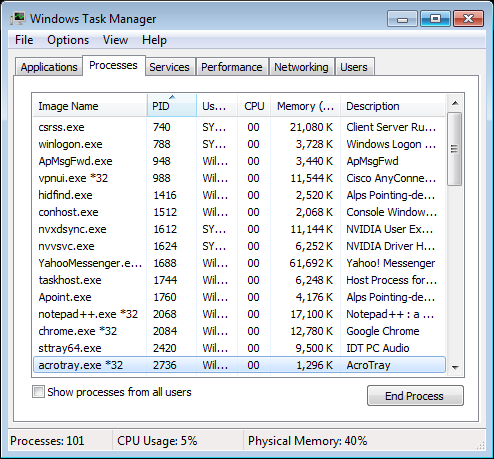
Note that you can add a PID column by selecting View>Select Columns... and choosing PID from the list. - Click the End Process button.

Comments
To prevent this:
1. open the IIS Manger by typing IIS from Start
2. Stop the IIS Server
To stop this service;
- Go to Task Manager------>Services
- Select BranchCache