 Home >
 Knowledge Base >
 FAQs >
 Downloads >
Inserting Items in an FFLD Using the KAS IDE
The KAS IDE Free Form Ladder Diagram (FFLD) editor has additional capabilities over standard Ladder Diagram (LD) editors, including:
- Split Windows
- Network collapse/expansion
- Drag 'n' Drop (move or copy)
- Scalable Size
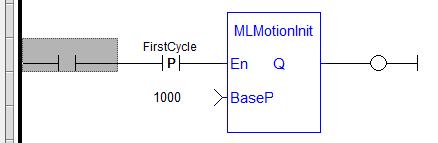
Adding or inserting items in a FFLD ladder rung requires there be enough space to fit the new item. For example, suppose you want to insert a contact before the function block:
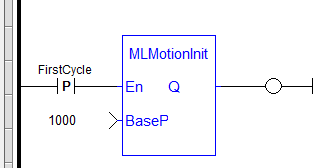
First, select the cells to move:
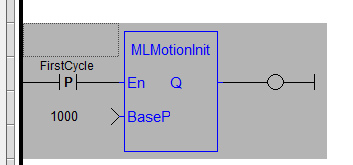
Then, drag 'n' drop to create some space:
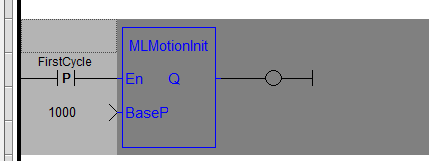
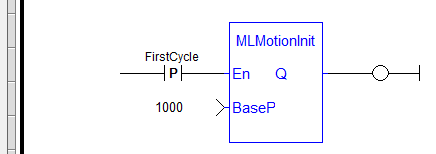
Add the new contact:
Or to Insert a network, first select a network or row:
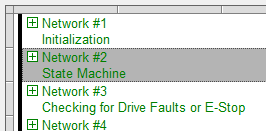
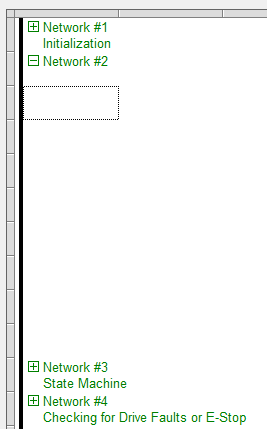
Then press the "Insert" button or right-click with the mouse and select the "Insert Network" menu item. The new network is inserted with space to add items and the remaining networks are automatically renumbered:
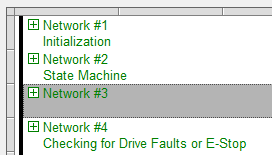
Drag 'n' Drop also works with Networks. For example, to change the order of Network #2 and Network #3, just select the network:
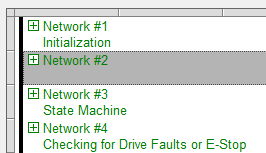
Drag 'n' Drop to the new location and the networks are automatically renumbered:
The FFLD design is different from traditional LD editors:
- FFLD items are spatially managed. Items can be added, moved, copied, deleted, or re-arranged freely across networks or programs.
- LD editors have fixed rungs. Items can be inserted, removed, branched, on a selected rung.