


 Home >
 Knowledge Base >
 FAQs >
 Downloads >
TrueView Ladder Page Change
This document refers to Giddings & Lewis PiC application note AN000034 and describes how to change pages on a TrueView operator interface in a PiC900 ladder.
This application note describes how to change pages on a TrueView Operator Interface in a PiC900 ladder. There are several ways to change pages on a TrueView OI:
-
You can press the ‘Get Page’ button on the right hand side of the OI and then type in the page number.
-
You can program a Variable Sized Control Button to change pages.
-
You can write a page number to a pre-defined variable in the PiC900 ladder which is then read by the TrueView OI, which then goes to this page.
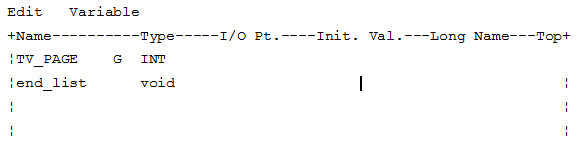
The variable for selecting a page in ladder must be an Integer variable. In your software declarations you need to enter in this variable and give it a global attribute as follows:
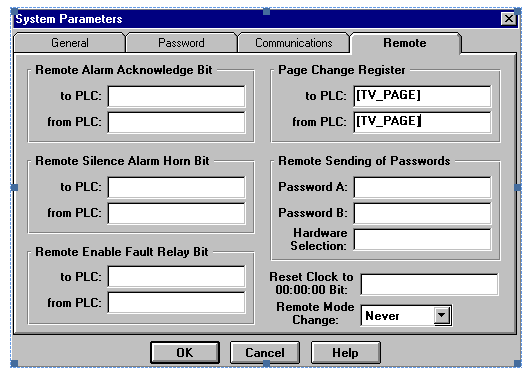
Under the ‘System Parameters’ in the TrueView configuration select the ‘Remote Tab’ and enter the ‘TV_PAGE’ variable into the ‘Page Change Register’, ‘to PLC’ and ‘from PLC’ windows. On the following page is a description of the Page Change Register from the on-line help screens in the TrueView Configuration Software.
Page Change Register
Only Register/Word (Integer Variable) references are allowed in these boxes; you may not enter expressions. Leaving these boxes blank disables the features.
To PLC: This box defines a register (PiC variable) in the PLC to which the TrueView unit writes the current page number during Run mode.
From PLC: This box defines a register (PiC variable) in the PLC that is scanned by the TrueView unit. When the TrueView unit scans a valid page number, it displays the page defined there.
There are two special page numbers ...
Page 100 is the Alarm Page. Page 102 is the Setup Page.
When a new valid page number is detected in the Page Change Register, the title bar will blink. The page does not change immediately if the operator has selected a control template, but waits until the control template is de-selected.
Note: You can change this option with the Allow Immediate Page Change selection box on the General dialog box of the Systems Parameters table.
Note: The Page Change Register will override Page Password Protection. If necessary, use Remote Sending Of Passwords and PLC ladder logic to implement a protection scheme.
The following are some programming notes on using the Page Change Register:
- The ‘to PLC’ and ‘from PLC’ registers can be the same variable or two different variables. We recommend that the same variable be used for both. If you use two different variables you will need additional logic in your ladder to control the ‘from PLC’ register. The Trueview will only change pages when it detects a change in the ‘from PLC’ register. For instance, on power up, the OI is on page 0, the ‘to PLC’ register would be equal to 0 and the ‘from PLC’ register is 0. The ladder then writes 2 to the ‘from PLC’ register, when the TrueView reads the ‘from PLC’ register it will go to page 2. If the operator changes pages in the TrueView the ‘to PLC’ register will be updated. However the ladder will not be able to force the TrueView back to page 2 until it changes the value of the ‘from PLC’ register to some value other than 2 and then back to 2 after the TrueView has read a value other than 2. Thus you would need to put in logic to do this. If you use the same variable for both, the TrueView would have written the new page number into the variable and the ladder could then force the TrueView to page 2 by simply writing a 2 to the variable.
- If you are using control buttons to make page changes in the ladder you need to use the negative transition of the BOOL to make the change. Since the TrueView does not allow a page change immediately if the operator has selected a control template, you need to wait until the control template is not active which indicated by the BOOL going from a high to a low. The following is an example of using a control button to make a page change.