 Home >
 Knowledge Base >
 FAQs >
 Downloads >
KVB Scripting and System Tags
Kollmorgen Visualization Builder (KVB) software contains built in System Tags that give users access to information generated in the panel, and has a C# scripting engine that allows them to add custom logic.
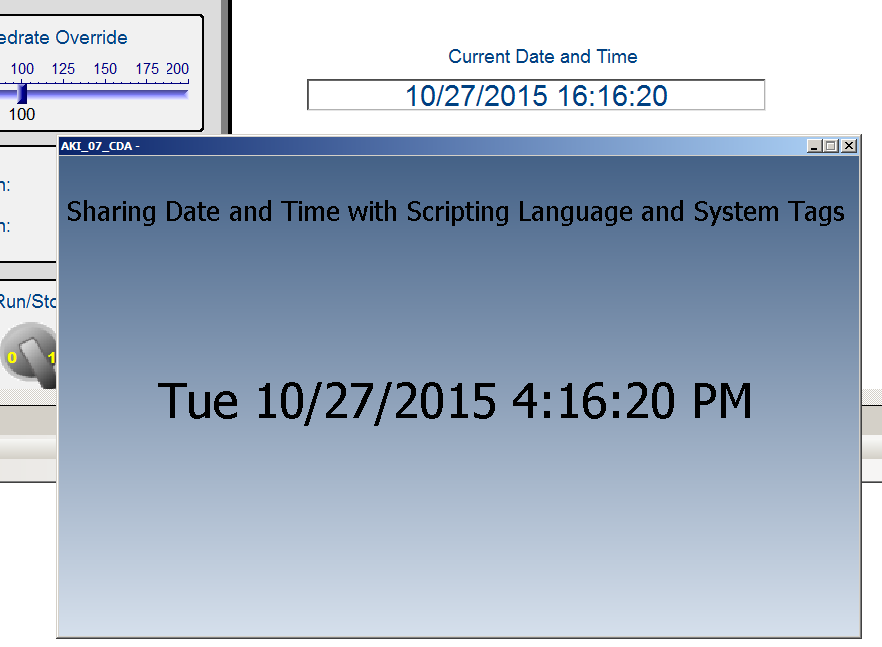
The attached KAS project contains a KVB program that uses the second, minute, hour, day, month, and year system tags and uses the C# scripting editor to share these values with KAS variables over modbus. The PDMM does not have a battery backed clock, so each time you cycle power the internal clock resets to zero. Many users want to schedule routine maintenance and want access to accurate time inside their KAS program. This allows users to read an accurate time off of an AKI panel and use it in a KAS program.
Other commonly used system tags include the string of the Last loaded recipe to show on an HMI screen, as well as access to the current screen shown on the AKI panel (so an emergency stop or fault monitoring screen can automatically be loaded in the event of certain flags are raised in a KAS project).
The scripting language can also be used to write your own logic or formulas in the KVB program. Some users are more comfortable writing code in C# as opposed to using PLC functions, and it also allows you to create custom graphics on an HMI.
To add System Tags, first go to the Tags editor of KVB and press the downward arrow on the Add button seen below to select "Add System Tag . . ."
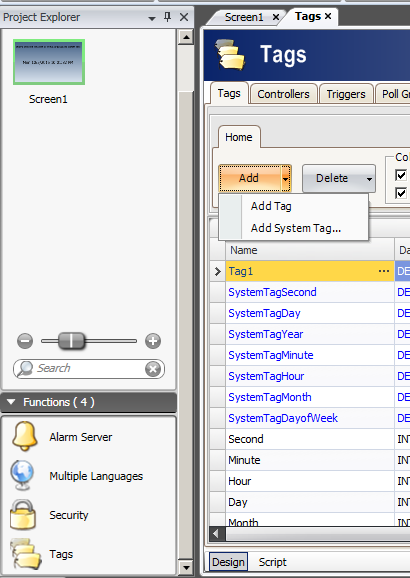
To add C# code to the project, in any screen can click on the Script text at the bottom of the main window. This sample project has script code added in th Tag section of KVB as seen below.
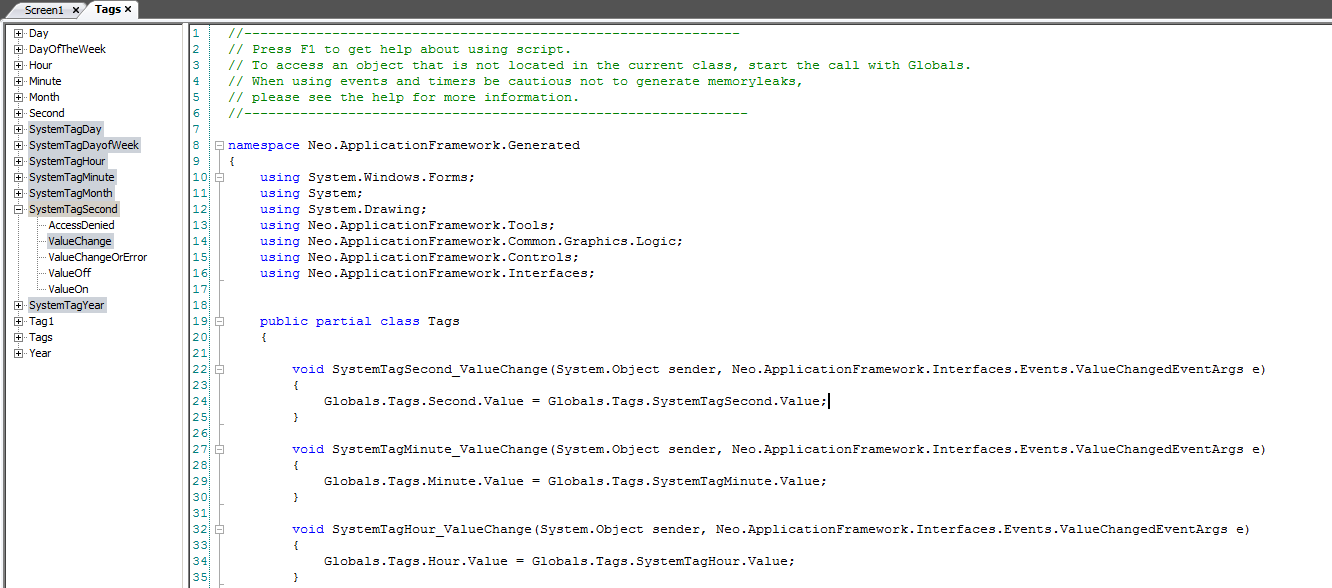
You can expand the section for any Tag in the project seen in the left (will see built in options for any object in other script screens) and can double click to add base code to the scripting language. This demo program wants to execute code whenever values of tags change, so we select the ValueChange option for each system tag. We then select the value of other tags created in KAS and shared over modbus with the HMI. The syntax to access tag variables in the scripting language is Globals.Tags.NameOfTag.Value
By running both the KAS and KVB project you can confirm that the system variables are shared with the KAS project by looking at the KAS dictionary or the control panel