 Home >
 Knowledge Base >
 FAQs >
 Downloads >
Creating a C# script within the AKI HMI Panel
Creating a C# script within the AKI HMI Panel
You can create a script that runs a C# program in the background of the HMI screen. A script in the Tag screen will run in the background all of the time. A script in one of the HMI screens will run in the background only when that screen is active.
In this example, we need a script that will set MT_NUM = 21 and MT_LOAD = 1 when the Run screen is opened. And we need a pause between these two commands to allow the AKD drive time to process the Modbus commands.
To create this script, follow these steps:
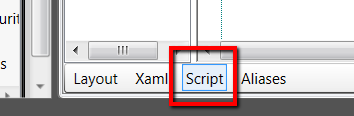
1. Open the script tab of the Run screen.
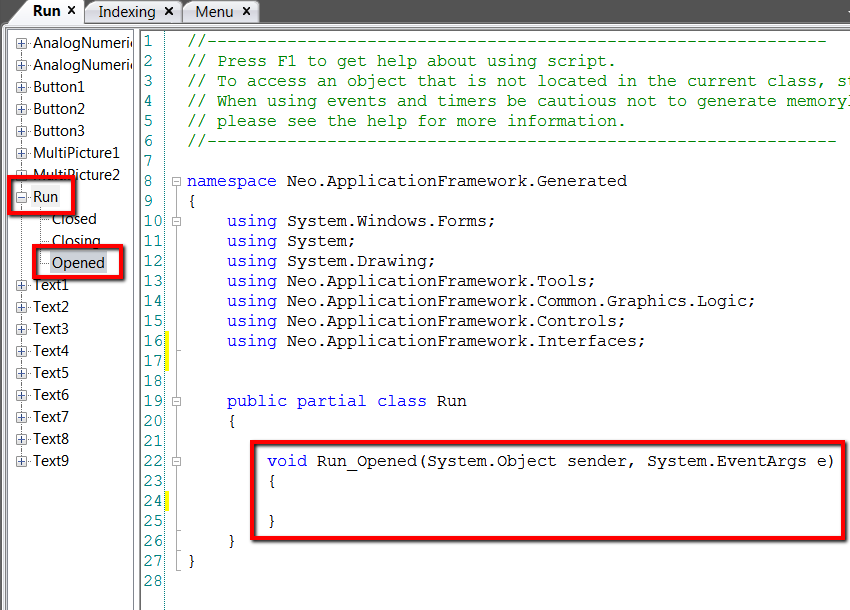
2. Expand “Run” (the name of the screen), and double-click on “Opened”. This will create a script that will execute when this screen is opened.
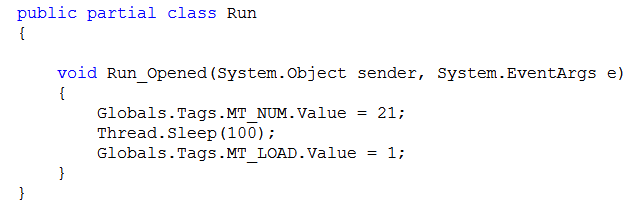
3. Type (or paste) the following into the line inside the curly brackets of the “void Run_Opened” script:
Globals.Tags.MT_NUM.Value = 21;
Thread.Sleep(100);
Globals.Tags.MT_LOAD.Value = 1;
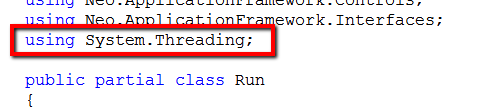
4. In order to use the Thread.Sleep command, you must also type “using System.Threading;” in the top section of the script.
This is what the script should look like:
namespace Neo.ApplicationFramework.Generated
{
using System.Windows.Forms;
using System;
using System.Drawing;
using Neo.ApplicationFramework.Tools;
using Neo.ApplicationFramework.Common.Graphics.Logic;
using Neo.ApplicationFramework.Controls;
using Neo.ApplicationFramework.Interfaces;
using System.Threading;
public partial class Run
{
void Run_Opened(System.Object sender, System.EventArgs e)
{
Globals.Tags.MT_NUM.Value = 21;
Thread.Sleep(100);
Globals.Tags.MT_LOAD.Value = 1;
}
}
}
Download the attached pdf for future reference.